Dynamic Link Filters
Sometimes, the value of a link will depend on a value of another field. For example, you may want to filter Admin level records based on the value of a higher admin level. An example is when you want to select all wards that belong to a specific county. A ward and a county will have a parent-child relationship which makes it possible to perform cascaded Filters.

To set filters for an engagement form field, click on the Set Filters button which is only available when the field type is of type Link
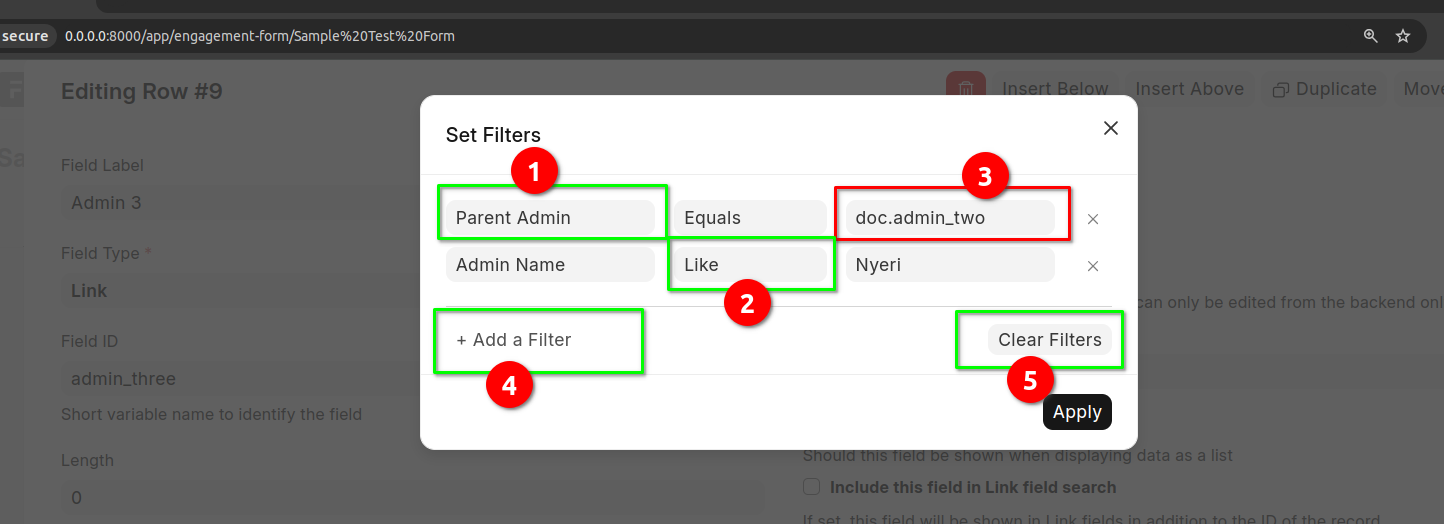
To add a filter, click on the button labeled 4.
To specify the field you want to filter with, click on the dropdown labeled 1. Here you will have a list of all the available fields. Select the field that you wish
To specify the operand, select the dropdown labeled 2. There are different operands depending on the type of field selected
Click on the area labeled 3 to specify the filter value.
Note
If you want to specify the filter value as the value of a field of the current record, in the area labeled 3, type the value as doc.{FIELD_ID}. Remember to replace {FIELD_ID with the actual id of the field e.g doc.admin_two
Click on Clear Filters button to set the filters
Once you have set the filters click on the Apply button