Form Design
To engage different stakeholders, an Engagement Form is required. An engagement form consists of different fields whose data must be captured. An engagement form provides a structured and organized way to capture data.
Field Types
There are variety of fieldtypes available in the backend. Each one has its own use case and can be used to input and store different types of data in a document. Fieldtypes are used to render components in backend, frontend as well as web forms.

Data
The data field will be a simple text field. It allows you to enter a value of up to 140 characters, making this the most generic field type. You can enable validations for the following types of data:
Name
Email
Phone
By setting the options to “Name”, “Email” or “Phone” respectively.
Link
Link field is connected to another master (Engagement Form or Reusable List) from where it fetches data. For example, in the Household Form, the County is a Link field. A link references data that has multiple attributes and the data can change. An example is a list of Sub-counties and wards. It can be cumbersome to list sub-counties and wards for each form that uses these data points. In that case, you would define the sub-counties and wards once and then reuse the list by specifying a Link field.
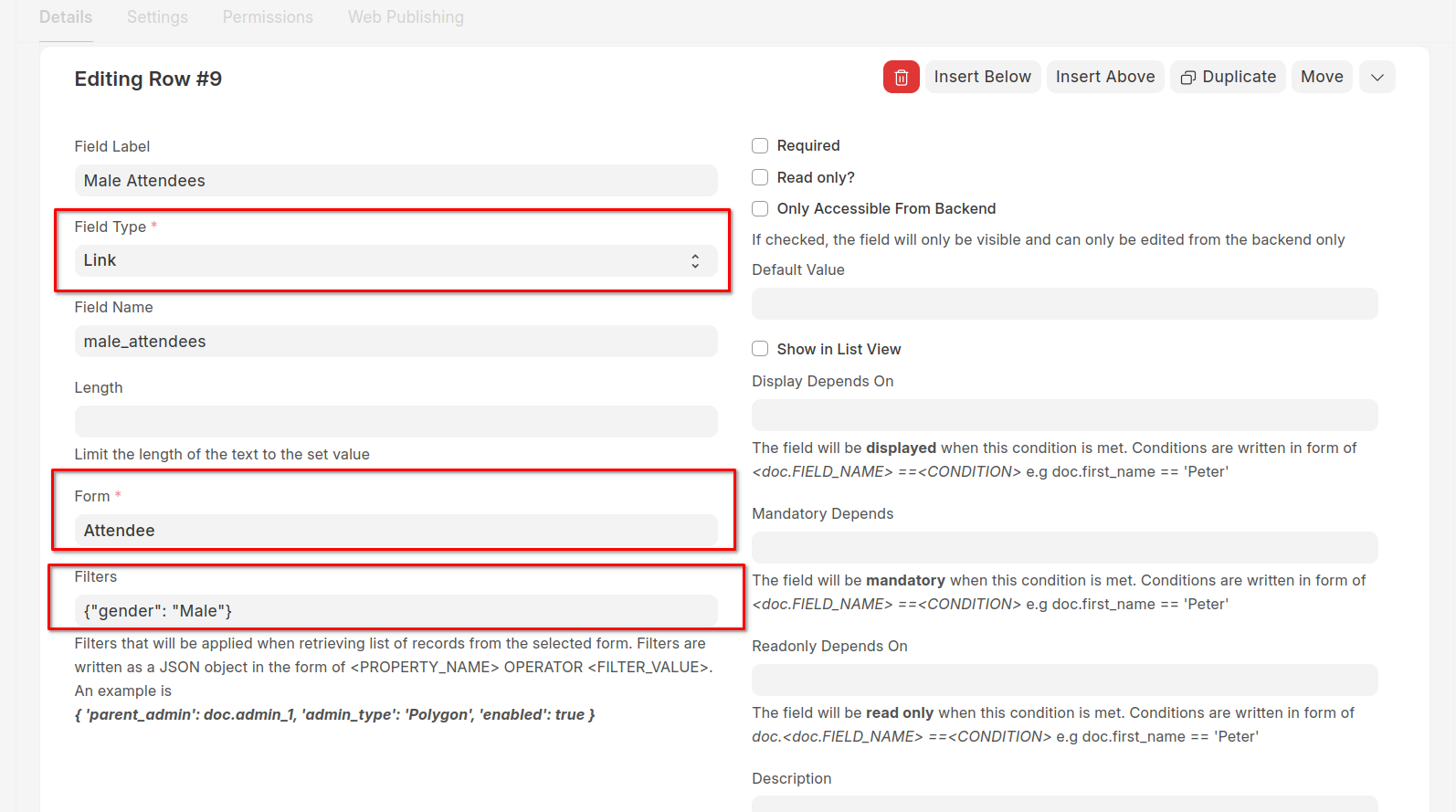
You can specify the filters to be applied when retrieving values for a Link field. The filters are specified in form of a JSON object. See examples below:
To select only male participants
{ "gender": "Male" }
or
{ "gender": ["=", "Male"] }
To select a list of counties with population of more than 200000
{ "population": [">", 2000000] }
To select a list of attendees with Farming and Livestock Keeping as their livelihoods
{ "livelihood": ["in", ["Farming", "Livestock Keeping"]] }
Please note that you will need to replace the field names with the appropriate names as specified when designing the linked form.
Check
This will enable you to have a checkbox here. You can set the Default value to 1 and it will be checked by default. When you set the field as mandatory, the form will only submit if the checkbox has been checked.
Select
Using the field type “Select”, you can create a drop-down field. You can specify all selectable values in the Options field, each value separated by a new line. One of the selectable values can be copied into the Default field. This value will then be selected by default in a new form.
Note
Use a Select field when you have standard options that are few in number and that are unlikely to ever change
Attach
Attach field allows you to browse a field from the File Manager and attach the same herein.

Date
This field will enable you to enter the Date in this field.

DateTime
This field will give you a date and time picker. The current date and time (as provided by your computer) are set by default.
Column Break
This is a ‘meta’ fieldtype that does not store any input data but can be used to indicate a column break in the document view or form.
For example,

will result into

Currency
Currency field holds numeric value, like Item Price, Amount, etc. Currency field can have value up to six decimal places. Also, you can have a currency symbol being shown for the currency field.
Duration
You can use the Duration field if you want to define a timespan. If you don’t want to track duration in terms of days or seconds, you can enable “Hide Days” and “Hide Seconds” options respectively in your Form.
Float
Float field carries numeric value, up to nine decimal places.
Geolocation
A Geolocation field will show a map view on which you can draw polygons, lines, and points. The data is stored as a GeoJSON feature_collection.
Int (Integer)
The integer field holds numeric value, without decimal place.
Password
This field is used when you want to capture sensitive data such as a password. As you type, the text is replaced by a series of asterisks
Rating
You can define the field as a Rate field which in the background will be calculated as Rating.
Small Text
Text field carries text content and has more character limit than the Data field. The display area is slightly larger than that of Data field but slightly smaller than the display area of a Text field. Use this field when the data is likely to span several lines.
Signature
You can define the field to be a Signature field wherein you can add the Digital Signature in this field.
Text
Text field carries text content and has more character limit than the Data field. The field is ideal for very long text that spans multiple lines or paragraphs
Table MultiSelect
This is a combination of ‘Link’ type and ‘Table’ type fields. Instead of a child table with ‘Add Row’ button, in one field multiple values can be selected.
Time
This is a Time field where you can define the Time in the field.
Linked Field
This is a field that derives its value from a property of another form that is being referenced in the current form. For example say you want to display the full name of a person after selecting their id number. In this example, you will have to first add a Link field that gets its data from the Person form. Then, you will add a Linked Field that then you specify the value of Form To Link to be the Person field. The value of Linked Form Property will be set as the full name property of the Person form

To use a Linked Field, follow these steps:
Add a Link field and set the value of the Form property to be the form that you want to retrieve data from
Add another field of type Linked Field
Set the value of Form To Link to be the field that you added in step 1
Set the Linked Form Property to be the field of the Form To Link that you want to pull data for
Note
Using this field type, you can show a list of values captured as part of another engagement tool.
Child / Table Form
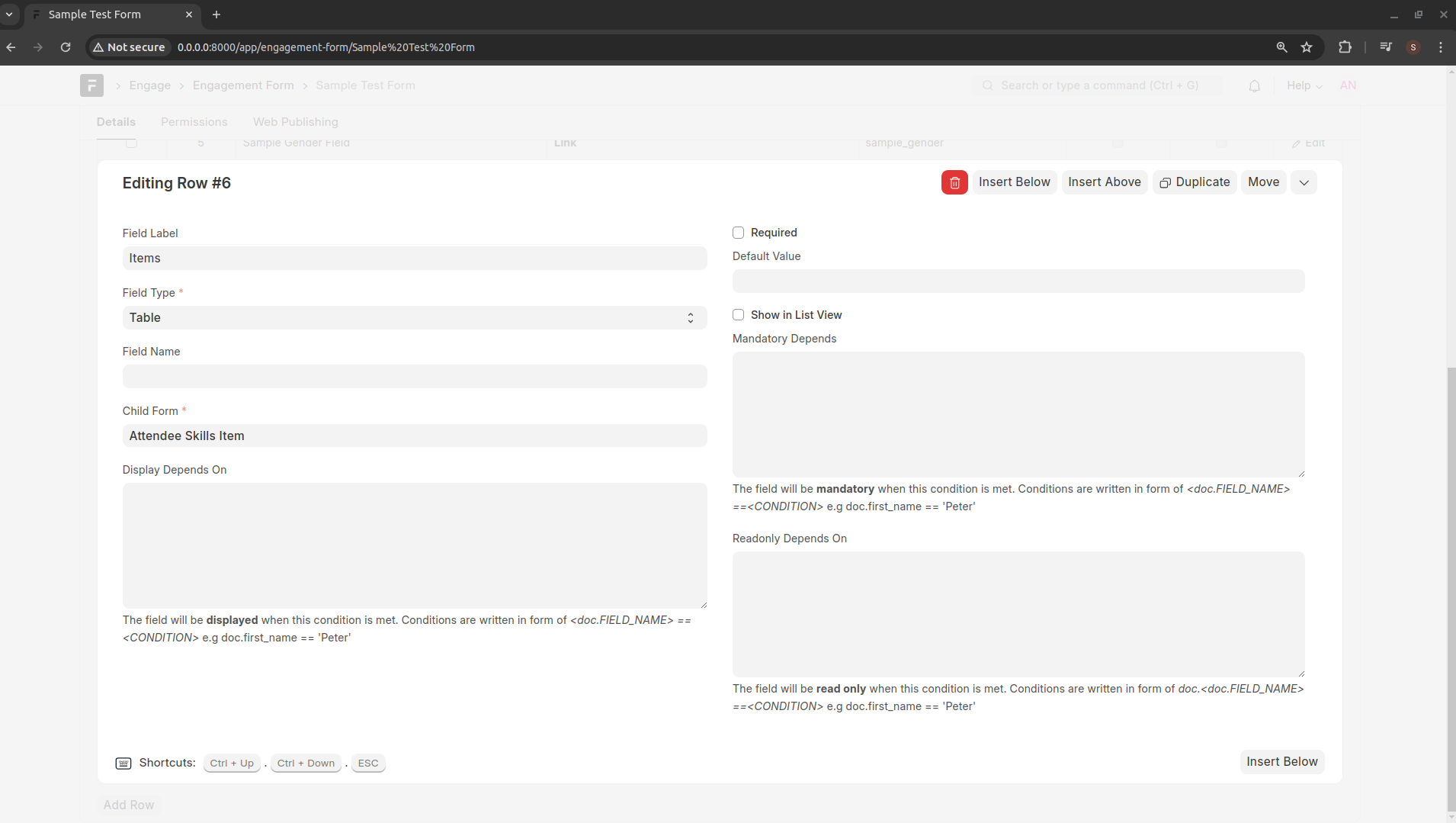
There might be a need for storing multiple records against one record, also known as many-to-one relationships. A Child Form is form which can only be linked to a parent Engagement Form. To make a Child form make sure to check Is Child Table while creating the Engagement Form. To link a Child form to its parent, add another row in Parent Engagement Form with field type Table and set the value of the Child Form as the name of the Child Table you just created.
Conventions
To enable rapid application development, the Backend follows some standard conventions.
Engagement Form is always named in singular. If you want to store a list of households in the database, you should name the Engagement Form as Household
The name of the Engagement Form cannot be more than 61 characters
The labels are always named such that the first letter of each word is in upper case and all other letters are in lower case, e.g First Name
When assigning field names, use Snake Case naming convention. Snake case separates each word with an underscore character (_). When using snake case, all letters need to be lowercase e.g first_name. Snake case is used for creating variable and field names.